The Birdcage TUI
Mission control for less than dinner for two.
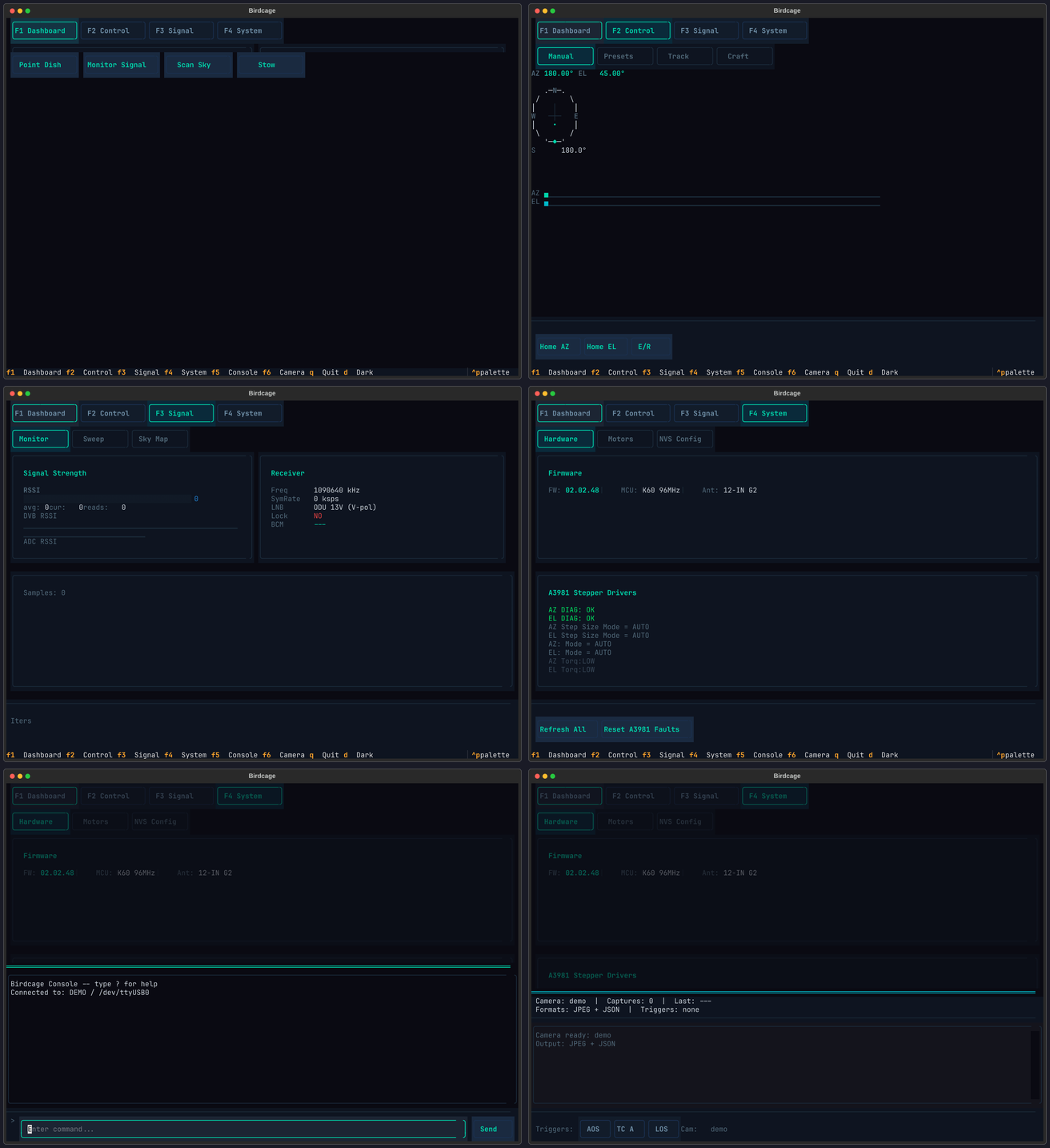
Somewhere inside every Winegard Carryout G2 is a 2013-vintage NXP Cortex-M4 running firmware 02.02.48, driving two Allegro A3981 stepper motors and a Broadcom BCM4515 DVB-S2 tuner through 12 submenus and over 100 undocumented commands. In 2026, it takes commands from a Python TUI built on Textual and doesn’t seem to mind.
Gabe Emerson (KL1FI) went first — publishing control scripts
for five different Winegard variants, proving that a $50–200 RV salvage yard dish could replace
a $500–2000 commercial amateur radio rotator. Chris Davidson (cdavidson0522)
figured out the G2’s RS-422 wiring and discovered azscanwxp — the firmware’s built-in radio telescope mode.
Birdcage is what happens when you take all of that and give it a proper interface.
Quick Start
Section titled “Quick Start”# Demo mode — no hardware, no clone, no installuvx birdcage-tui --demo
# With camera capture support (Pillow + astropy)uvx --with 'birdcage-tui[camera]' birdcage-tui --demo
# Connect to a real dishuvx birdcage-tui --port /dev/ttyUSB0 --firmware g2# Clone and installcd tui/uv sync
# Demo modeuv run birdcage-tui --demo
# Connect to a real dishuv run birdcage-tui --port /dev/ttyUSB0 --firmware g2Extras
Section titled “Extras”The base install includes everything except image processing. Optional extras add camera capabilities:
| Extra | Install | What it adds |
|---|---|---|
| (base) | uvx birdcage-tui | Full TUI, all 6 screens, demo mode |
camera | uvx --with 'birdcage-tui[camera]' birdcage-tui | JPEG annotation (Pillow) + FITS export for radio astronomy (astropy) |
The camera screen (F6) works without the camera extra — it falls back to minimal JPEG output. The extra adds annotated frames and FITS file export for integration with DS9, CASA, and other astronomy tools.
Six Screens
Section titled “Six Screens”Navigate between screens with F1–F4 keys, plus F5 and F6 overlays. Click the tab bar at the top or use the hotkeys. The device status bar at the bottom persists across all screens — connection state, serial port, firmware version, and current menu prompt are always visible.
F1 — Dashboard
Section titled “F1 — Dashboard”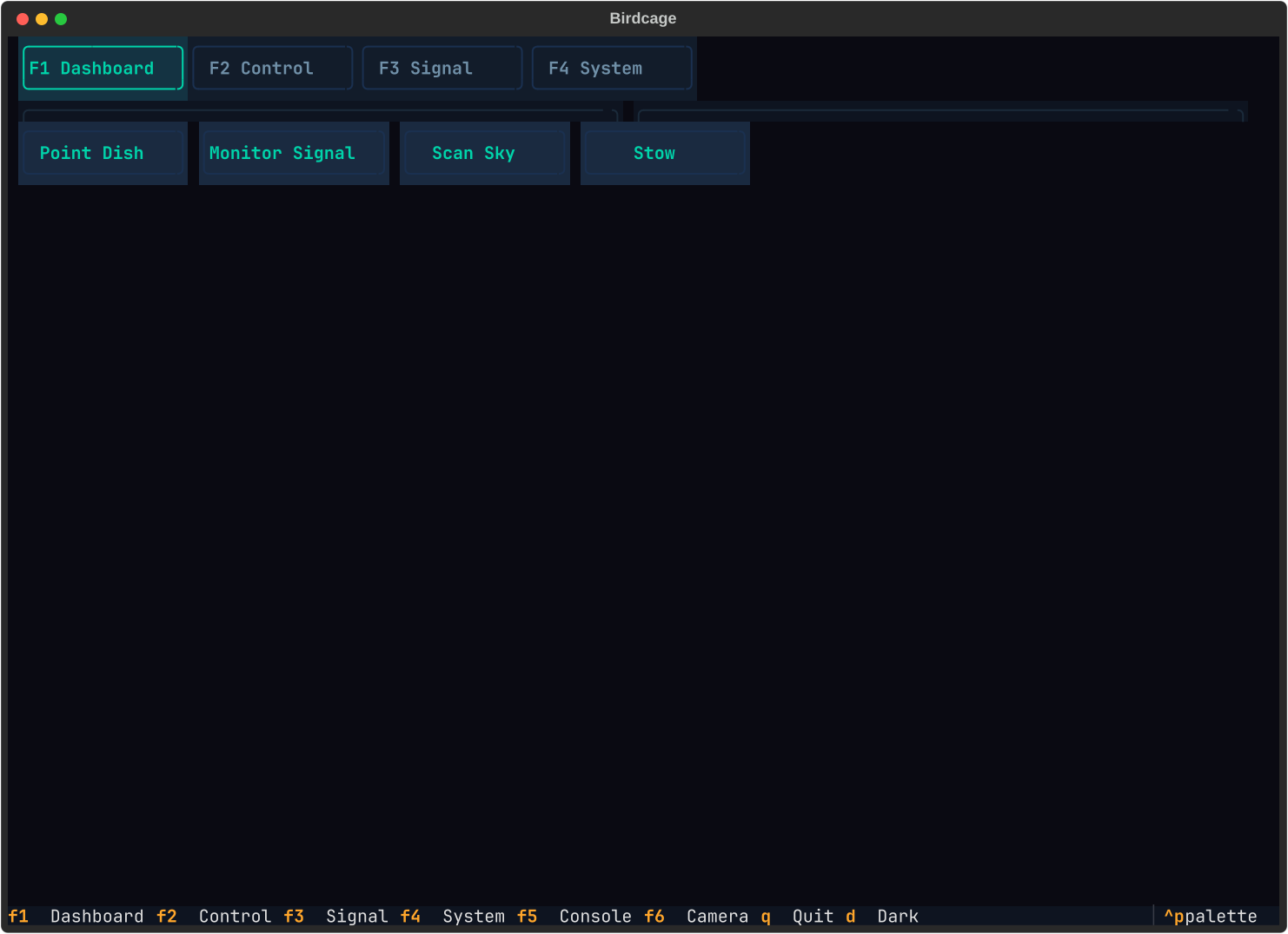
The launch pad. Four action cards — Point Dish, Monitor Signal, Scan Sky, and Stow — each jump to the relevant screen with a single click. It’s the screen you see on connect, and the one you come back to when you’re done adjusting.
F2 — Control
Section titled “F2 — Control”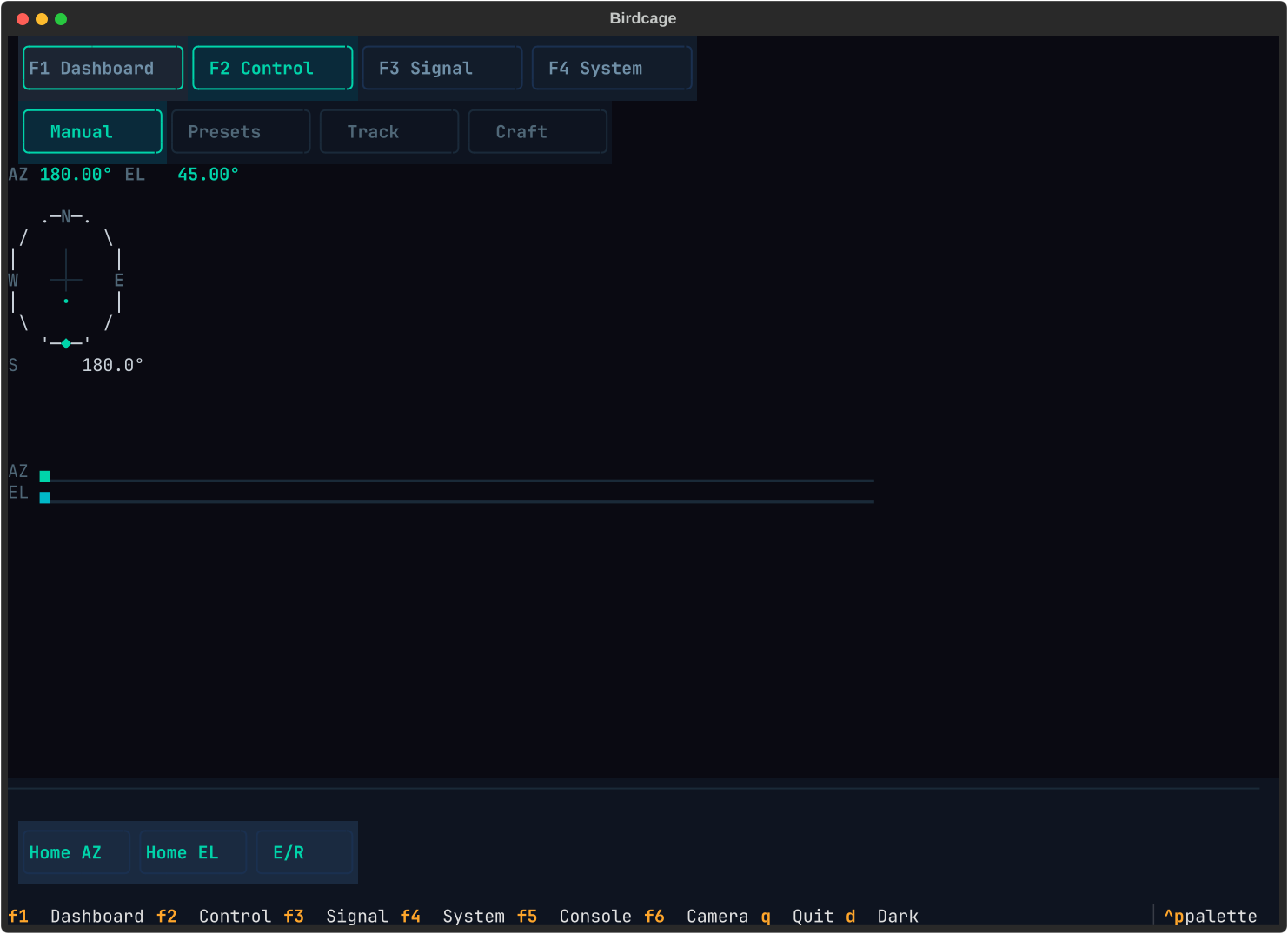
Where you actually point the dish. Four modes across the top: Manual, Presets, Track, and Craft. Track mode starts a rotctld server on port 4533 so external controllers — Gpredict or a remote Craft instance — can drive the dish with live satellite tracking. Craft mode talks to the space.warehack.ing API directly — no rotctld needed.
In Manual mode, a compass rose shows current azimuth with a bearing indicator. AZ and EL readouts update live — the G2’s stepper resolution is 0.009° azimuth (40,000 steps/rev) and 0.014° elevation (24,960 steps/rev). Arrow keys nudge the dish, with a step size selector (0.1° to 10°) that multiplies each keypress. AZ and EL sparklines give immediate visual feedback: flat lines mean the dish is parked, slopes mean it’s slewing, and the noise floor after arrival tells you how much stepper backlash you’re dealing with.
Below the sparklines, velocity controls let you tune motor speed on the fly — set AZ and EL max velocity in °/s and hit Apply. The firmware stores these in STEP> as microsteps/sec, but the TUI handles the conversion. Home AZ, Home EL, and E/R (engage/release motors) round out the bottom toolbar.
Craft Mode
Section titled “Craft Mode”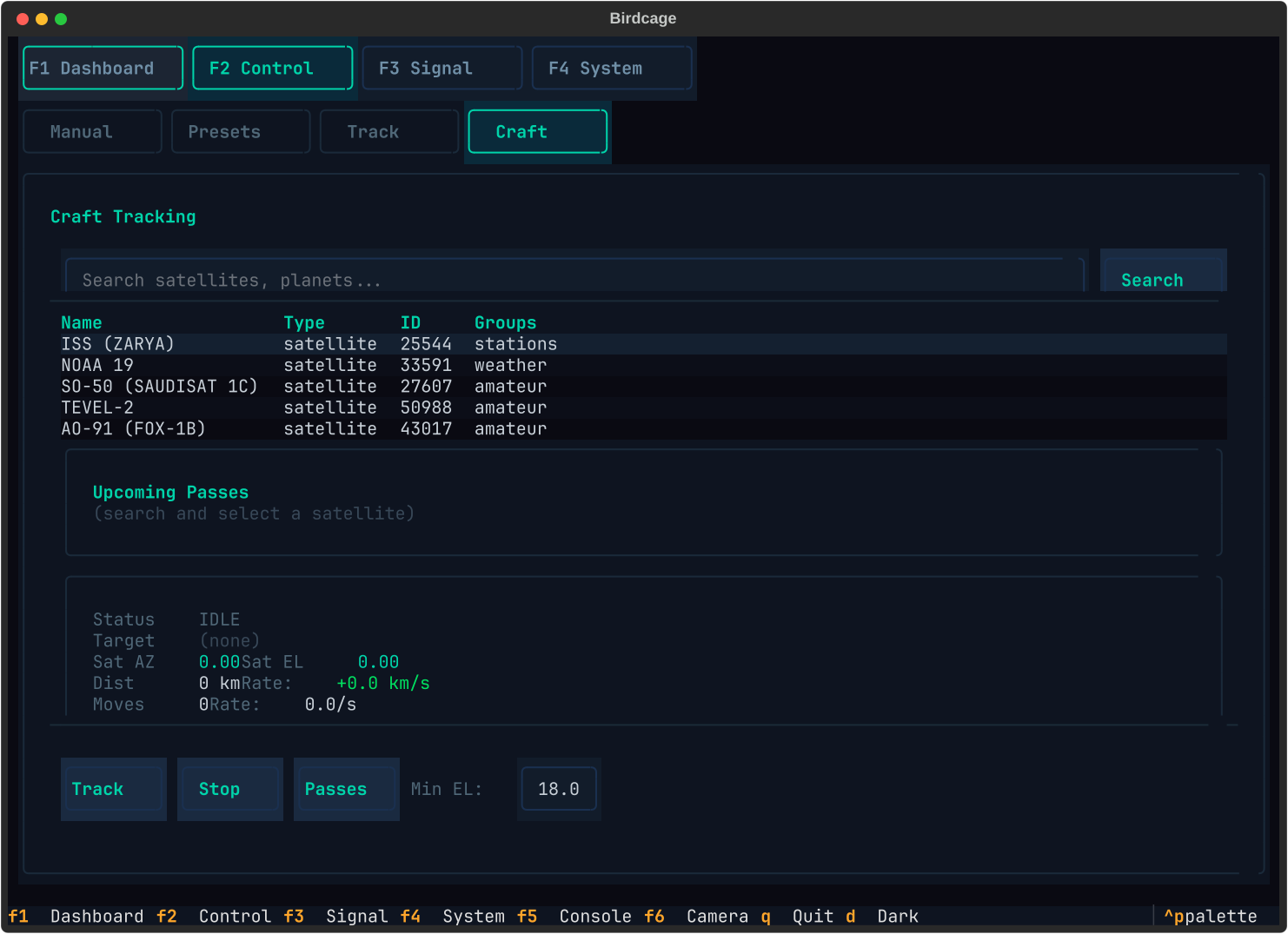
Craft mode connects directly to the space.warehack.ing API for satellite and celestial body tracking — no rotctld server, no external controller. Type a name in the search bar and the catalog returns matches with NORAD ID, type, and group. Select a target from the results table, then hit Track to start following it at 1 Hz.
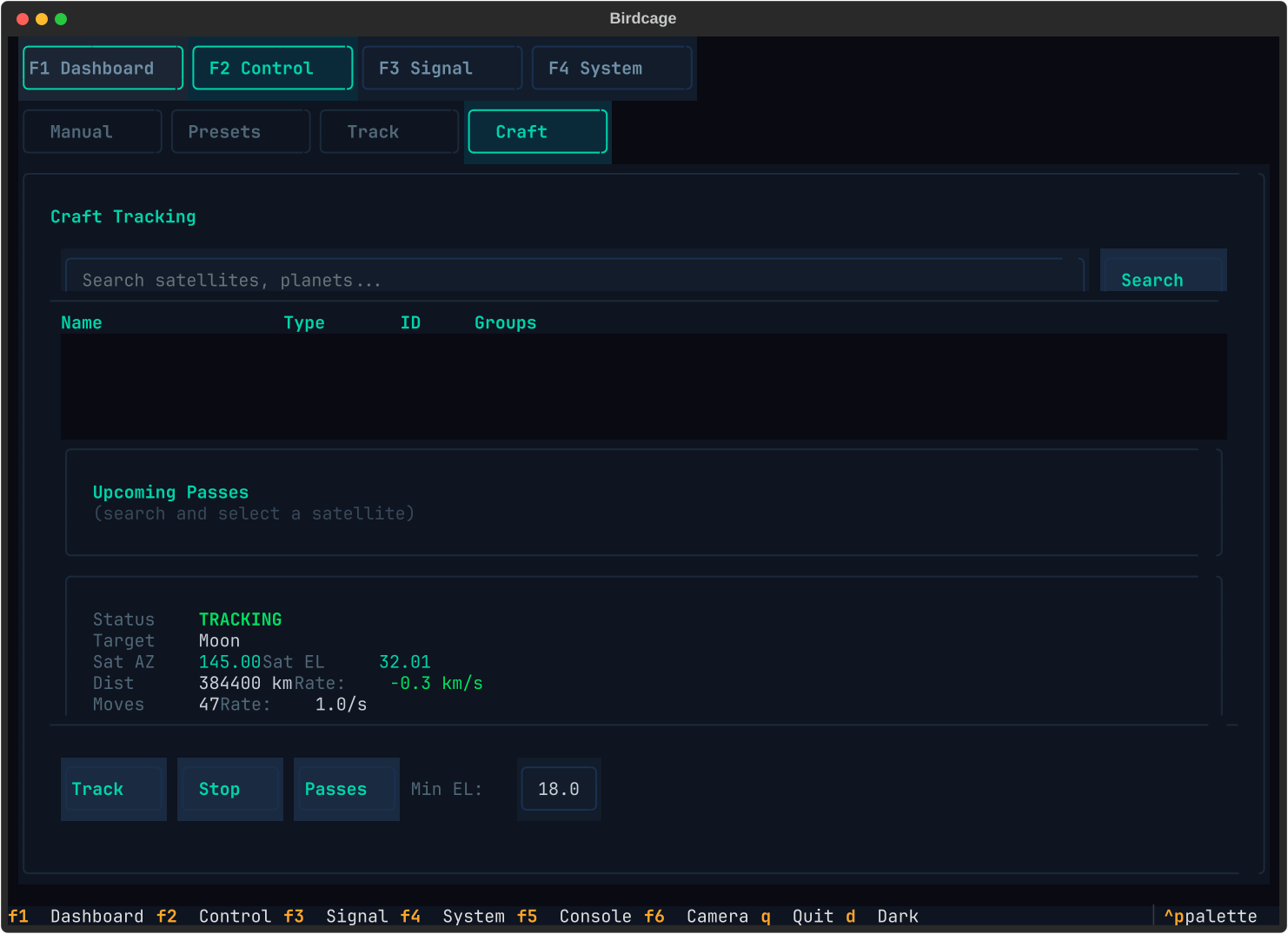
The status panel shows the tracking lifecycle: IDLE (nothing selected), TRACKING (target above minimum elevation, dish is moving), or WAITING (target below the minimum elevation floor — the dish holds position until the target rises). Sat AZ and Sat EL update each second with the target’s computed position. The Passes button fetches upcoming pass predictions for LEO targets — rise time, peak elevation, and duration.
Pass state transitions (WAITING → TRACKING at AOS, TRACKING → WAITING at LOS) feed into the Camera overlay’s automatic trigger system, so you can capture images at acquisition of signal, closest approach, or loss of signal without manual intervention.
F3 — Signal
Section titled “F3 — Signal”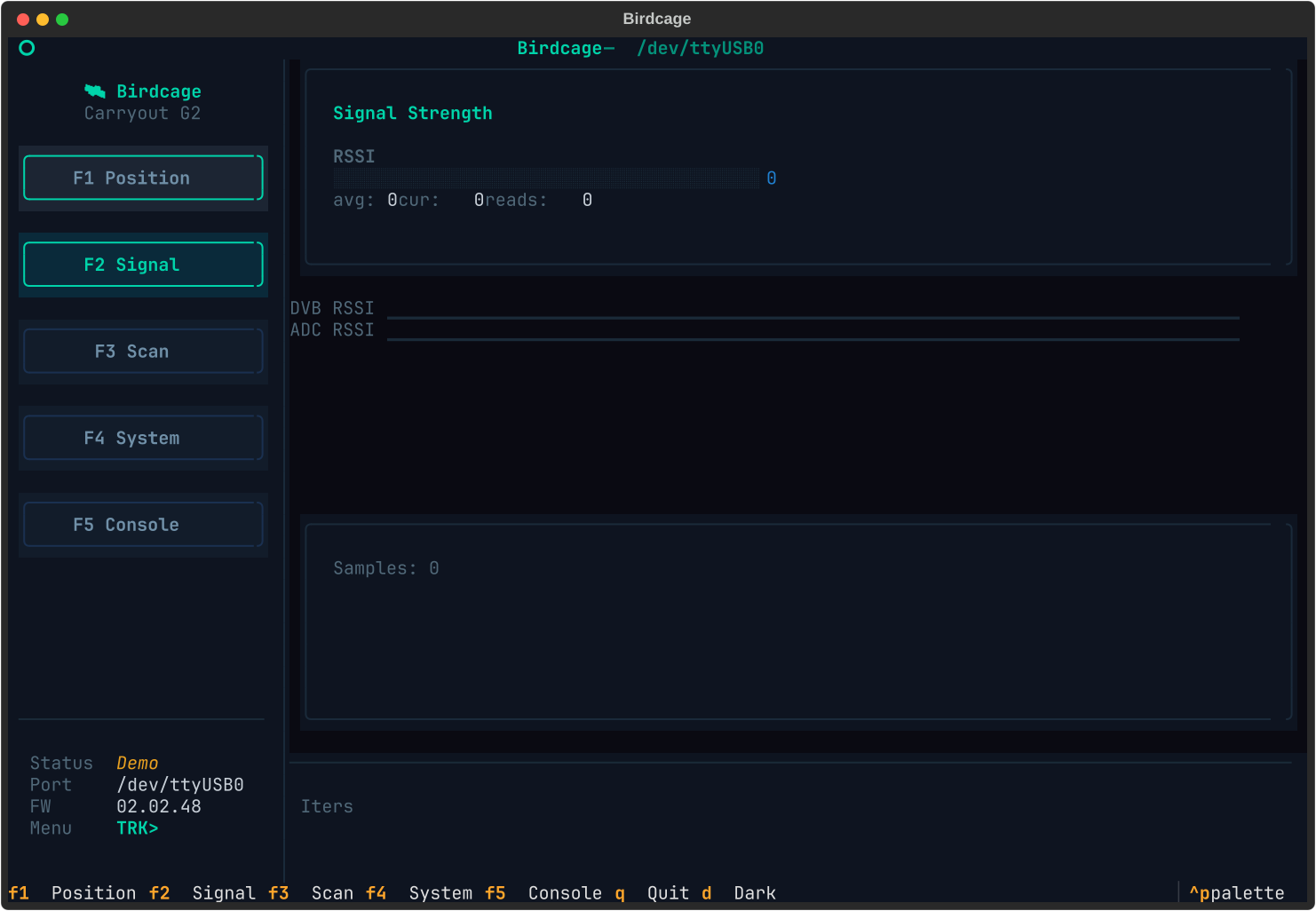
Signal strength from two sources: the BCM4515 DVB tuner’s RSSI (bounded, averaged)
and the raw ADC reading (single-shot). Three modes: Monitor (live gauges), Sweep
(automated peaking), and Sky Map (2D RSSI heatmap from azscanwxp scans).
In Monitor mode, the gauge uses sub-character Unicode block elements (▏▎▍▌▋▊▉█) for
smooth visual resolution. The Receiver panel alongside shows tuner frequency, symbol rate,
LNB voltage/polarity, lock status, and SNR. On a live dish with the LNA enabled
(lnbdc odu), the noise floor sits around RSSI 500 (ADC) or 230–490 (DVB, polarity-dependent).
F4 — System
Section titled “F4 — System”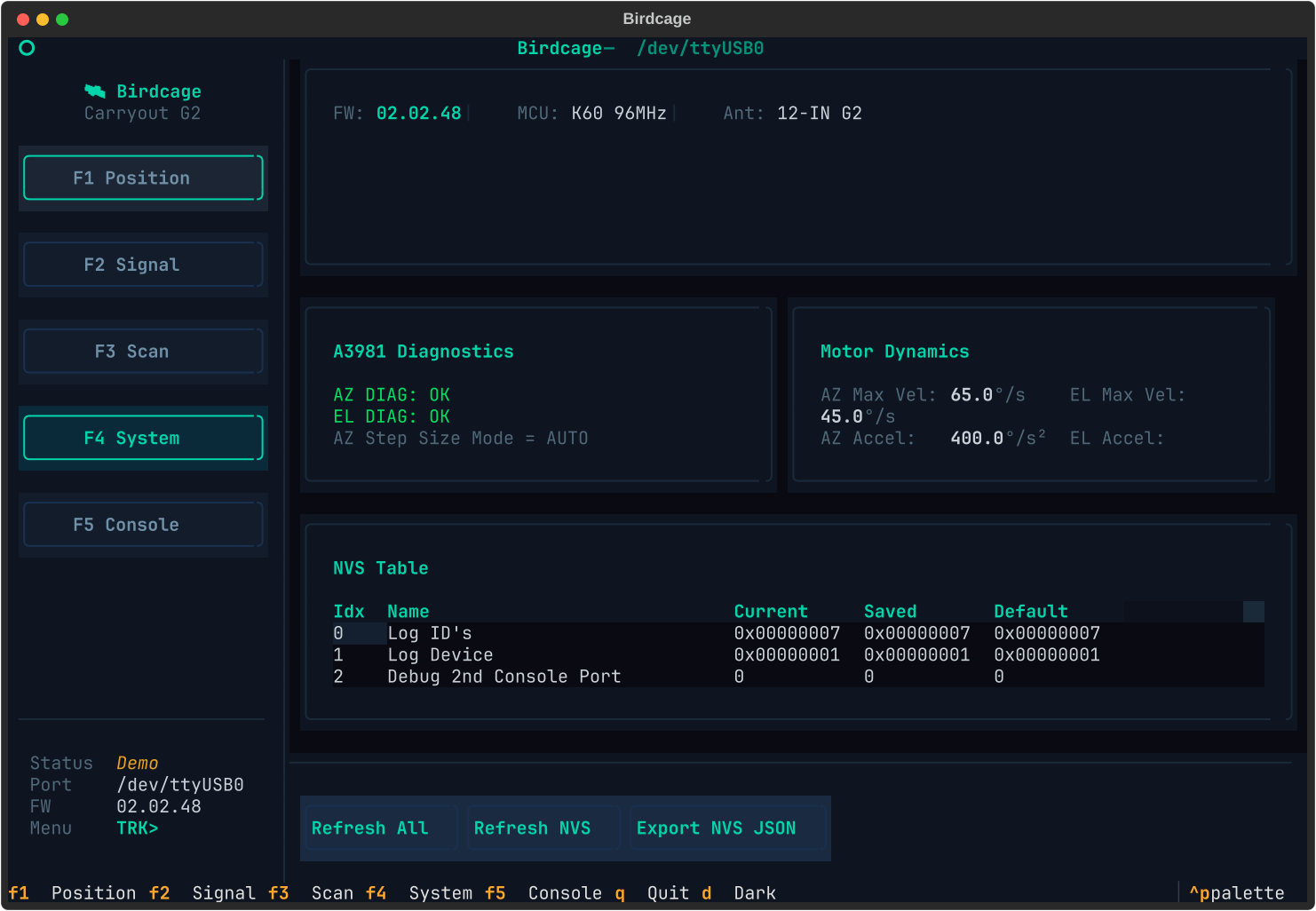
The system dashboard with three tabs: Hardware, Motors, and NVS Config.
The Hardware tab shows the firmware identity banner — version 02.02.48, K60 MCU at 96 MHz, antenna ID “12-IN G2” — and A3981 stepper driver diagnostics: fault pin status for both drivers (AZ/EL DIAG: OK or FAULT), step size mode (AUTO means the driver handles microstepping transitions automatically), and current control mode.
The NVS Config tab provides a scrollable browser of all 134 non-volatile storage values. Current, saved, and default columns let you see what’s been modified. Refresh and Export buttons at the bottom do what you’d expect.
F5 — Console
Section titled “F5 — Console”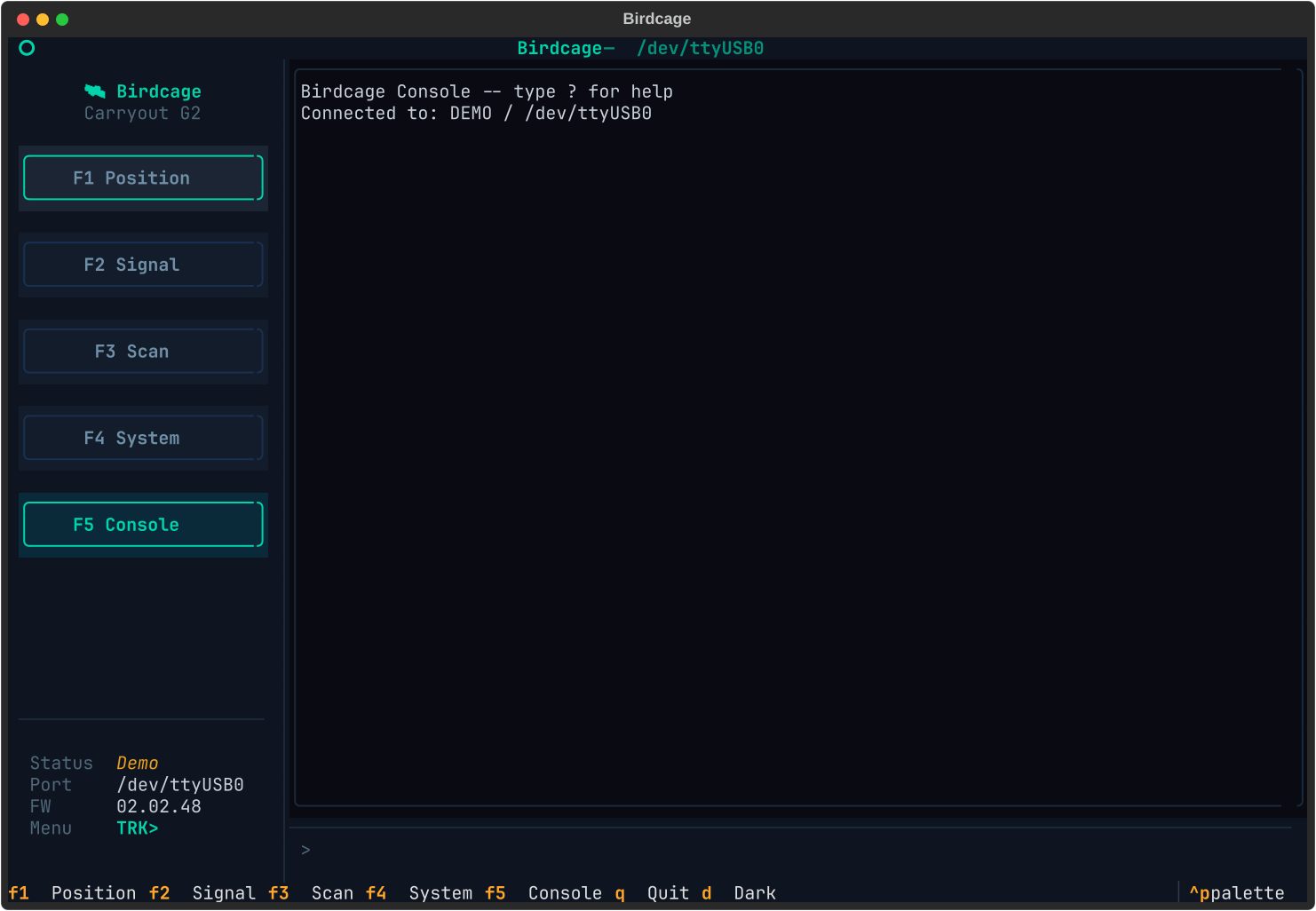
Raw firmware console access with guardrails. Type commands directly to the dish’s serial
interface, see responses with color-coded prompt tracking (TRK>, MOT>, DVB>, NVS>,
etc.). Command history with up/down arrows.
The safety gates matter here: the console warns before sending q at root level (which
kills the firmware shell — requires power cycle to recover), before reboot, and before
NVS writes. The firmware doesn’t have an “are you sure?” prompt. Birdcage does.
F6 — Camera
Section titled “F6 — Camera”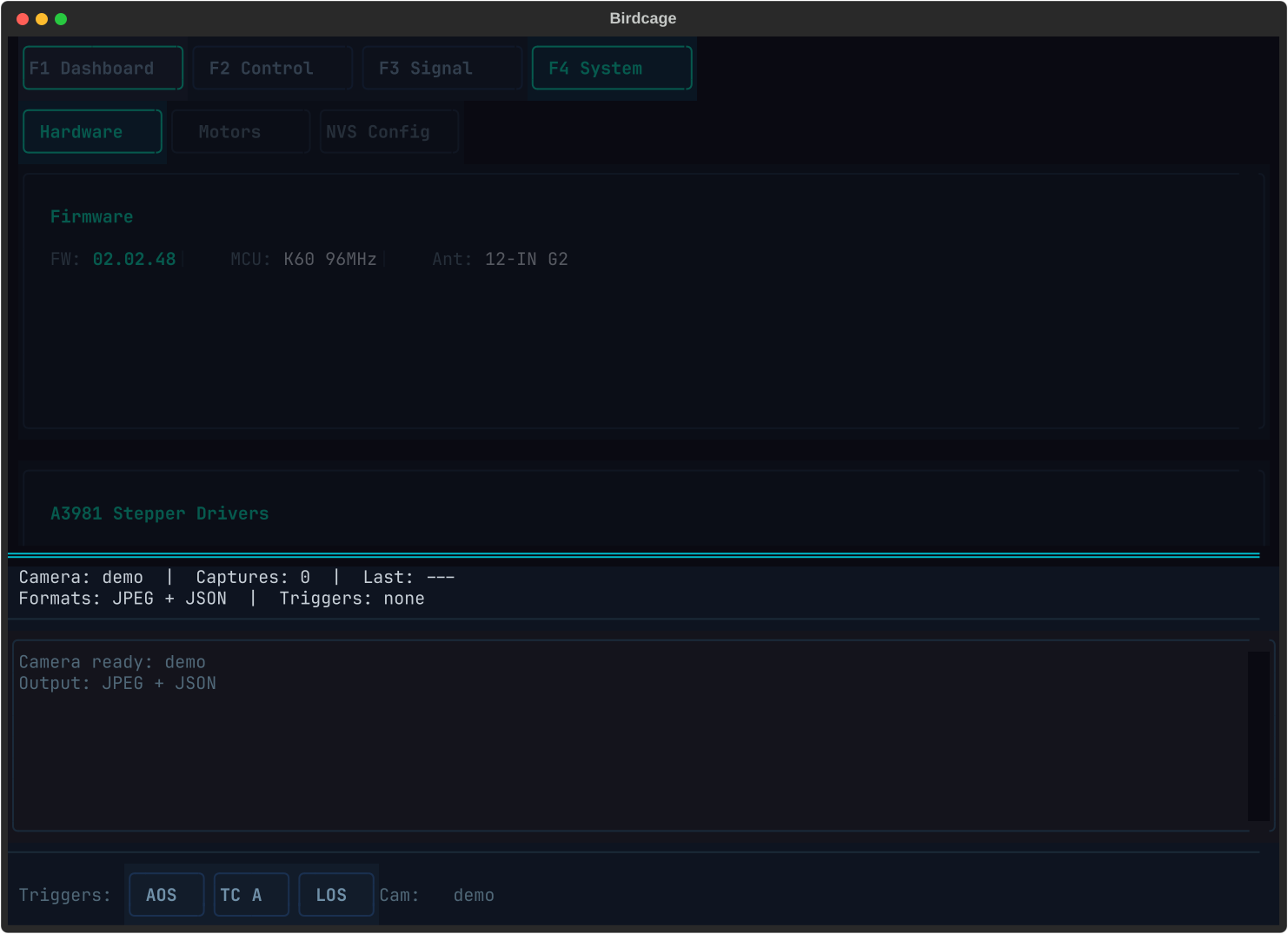
A modal overlay for image capture during satellite passes. Toggle it with F6 or dismiss with Escape — it floats over whichever screen you’re on.
Three trigger modes:
- Manual — press c to capture a single frame on demand
- Interval — set a timer and capture automatically at a fixed cadence
- Pass events — fire on AOS (acquisition of signal), TCA (time of closest approach), or LOS (loss of signal) transitions from the Craft or Track tracking loops
Each capture produces a JPEG frame paired with a JSON sidecar containing dish position, target name, timestamp, trigger type, and tracking state at the moment of capture. The status bar at the top of the overlay shows the active camera, capture count, last capture time, output formats, and which triggers are armed.
Demo Mode
Section titled “Demo Mode”Pass --demo and Birdcage substitutes a DemoDevice for the serial bridge. The simulator models:
- Motor physics — position changes at ~10°/s with configurable settling noise (±0.05° random perturbation to simulate stepper backlash)
- RSSI signal — Gaussian model centered on a target position, so signal strength increases as you point closer to the simulated source
- All 12 submenus —
TRK>,MOT>,DVB>,NVS>,A3981>,ADC>,OS>,STEP>,PEAK>,EE>,GPIO>,LATLON>,DIPSWITCH>. Menu navigation withmot,dvb,nvs, etc. andqto go back all work correctly - Full NVS dump — the complete 134-entry table from firmware 02.02.48, captured from a live unit on 2026-02-12
- Satellite catalog — 8 canned objects (ISS, NOAA 19, SO-50, TEVEL-2, AO-91, Moon, Sun, Jupiter) with time-varying LEO arcs that cycle through AOS → TCA → LOS transitions on ~10-minute periods. Camera pass-event triggers fire on these transitions.
Every screen, every widget, every button works in demo mode. It’s the same code path — the only difference is what’s on the other end of the bridge.
The Story
Section titled “The Story”The hardware was never the hard part. RV satellite dishes show up at salvage yards for $50–200 because the RV got totaled or the owner switched to Starlink. The mechanicals are built to survive highway speeds and hailstorms. The motors are Allegro A3981 stepper drivers with 1/16 microstepping — more precise than most amateur radio rotators at ten times the price.
The gap was always software.
Gabe Emerson (KL1FI) bridged it first. Five repositories for five Winegard variants — the
Trav’ler (HAL 0.0.00 and HAL 2.05), the Trav’ler Pro, the original Carryout, and the
Carryout G2. Python scripts that send a 0 180 to point azimuth south and a 1 45 to tilt
elevation to 45°. A rotctld bridge so Gpredict could drive the dish. Proof that the idea
worked.
Chris Davidson took the G2 further — mapped the RS-422 wiring (four wires, not two, and
polarity matters or you get garbled data at the correct baud rate), discovered the azscanwxp
command buried in the motor submenu, and turned a TV satellite dish into an RF imager.
Birdcage picks up where they left off. We reverse-engineered over 100 commands across 12 firmware submenus using automated probing and interactive exploration. We documented the full NVS table (134 entries), the GPIO pin map, the SPI bus layout (4 MHz to the motor drivers, 6.857 MHz to the DVB tuner), the DiSEqC 2.x interface, and the boot sequence from bootloader through motor calibration to prompt.
The TUI is what ties it together. Not because a terminal interface is fashionable, but because when you’re on a roof with a laptop and a USB-to-RS422 adapter, you want something that runs over SSH and shows you everything at once.
A 2013 microcontroller. A 2026 terminal. A dish that costs less than the cable to connect it.
That’s the project.